
Google alerts
Google Alerts is a useful and free tool to track information online, for example for monitoring press comment about your academy.
Setting it up is a simple process — you don’t even have to have a Gmail account to use Google Alerts.
- Go to www.google.com/alerts/ where you’ll see this page:
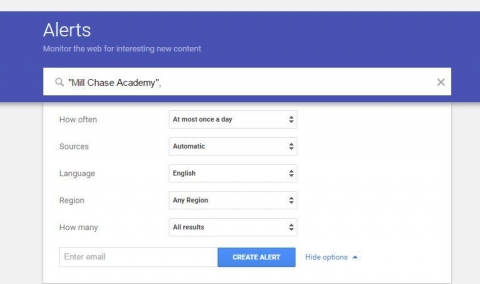
- [Set up a Google Alert] Sign in if you have a Gmail account. If you don’t have a Gmail account, you can just start filling out the Google Alert form.
- Enter the search terms you want the Google Alert to track, separated by commas. Put inverted commas around phrases, e.g. "Mill Chase Academy" for accurate searching. You can edit this later if you find you have too many or too few terms.
-
- Choose the Type of results you want Google Alerts to find and share with you.You can choose from the following:
- News
- Blogs
- Video
- Discussions
- Books
- Everything (so you can track it all)
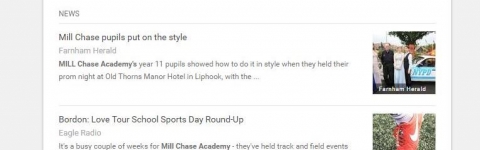
You will see a preview of your search results underneath:
-
- Choose how often you’d like to receive your Google Alerts. Once a day or even once a week might be enough. However, if you’re tracking a timely project or news story, you may want to choose as-it-happens.
- Choose how many results you want to get. You can receive “only the best results” or “everything” depending on your needs.
- Choose where you’d like the Google Alerts delivered, for example to your work email address. If you have a Gmail account, you can receive them via gmail. If you’d rather, you can receive them via RSS or another e-mail account.
- Click the Create Alert button and finish.